You can now set your brand colours and font once for a whole domain. Every new service and widget on that domain starts with them, and one button brings your existing ones in line too.
Your brand palette
Open Domain Settings and find Brand Palette. Pick up to seven colours and a font:
- Brand colour for buttons, links and accents, and a second brand colour for special touches
- Main background, content background, and a colour for borders and subtle backgrounds
- Text and secondary text
- Font, from the same font list as the style editor
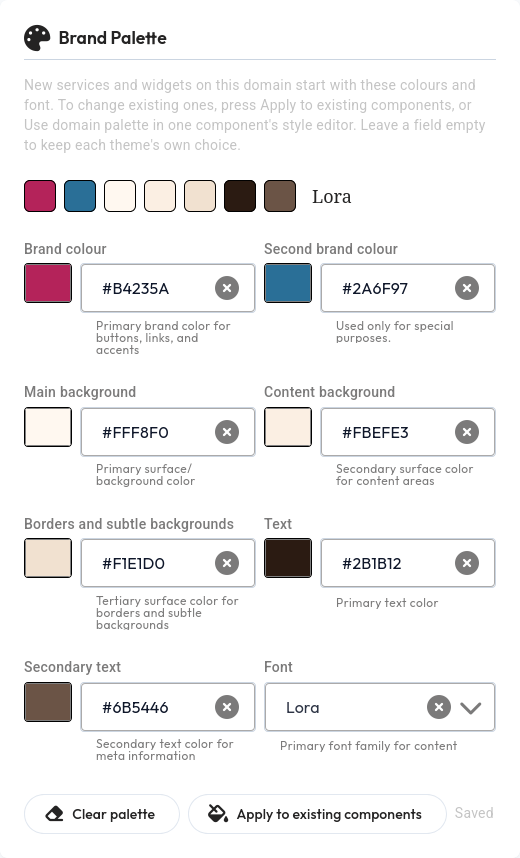
Changes save on their own as you edit, the same way the style editor does. Leave a field empty and each theme keeps its own choice for it.
New services and widgets start on-brand
Once a palette is set, every links page, blog, job board, launch page, mailing list, questionnaire and widget you create on the domain starts with your colours and font. There's no need to restyle each new one by hand.
Apply it to what you already have
Press Apply to existing components to bring your current services and widgets onto the palette. Before anything changes, you see how many of each will be updated on the domain.
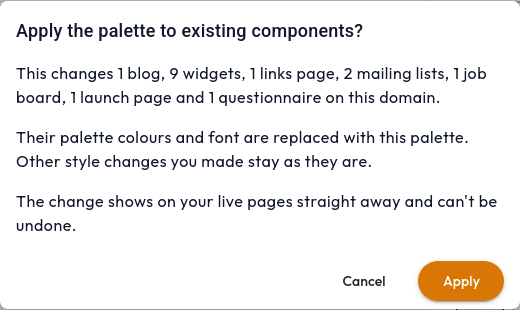
Only the palette colours and font are replaced. Any other style changes you've made stay as they are. The change shows on your live pages straight away.
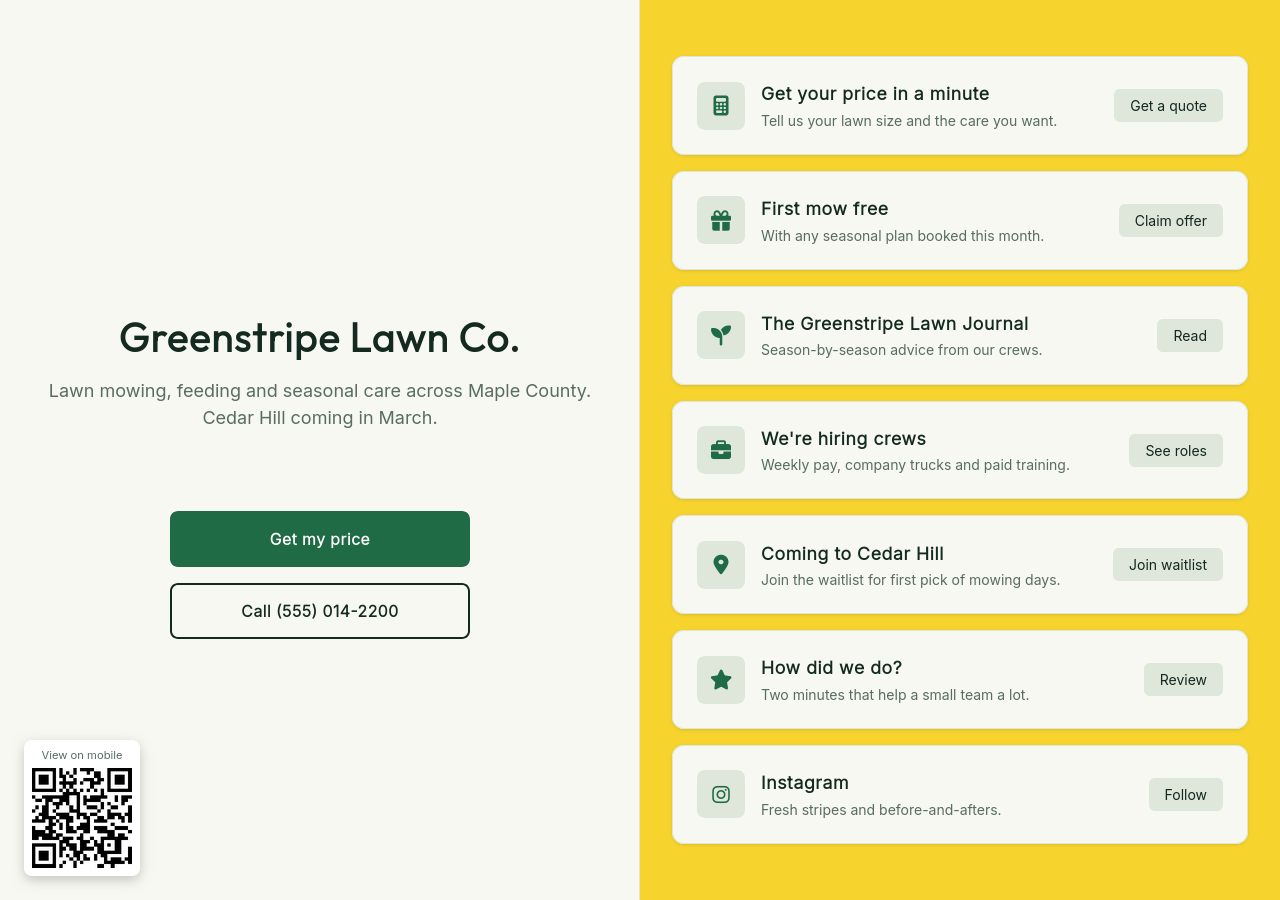
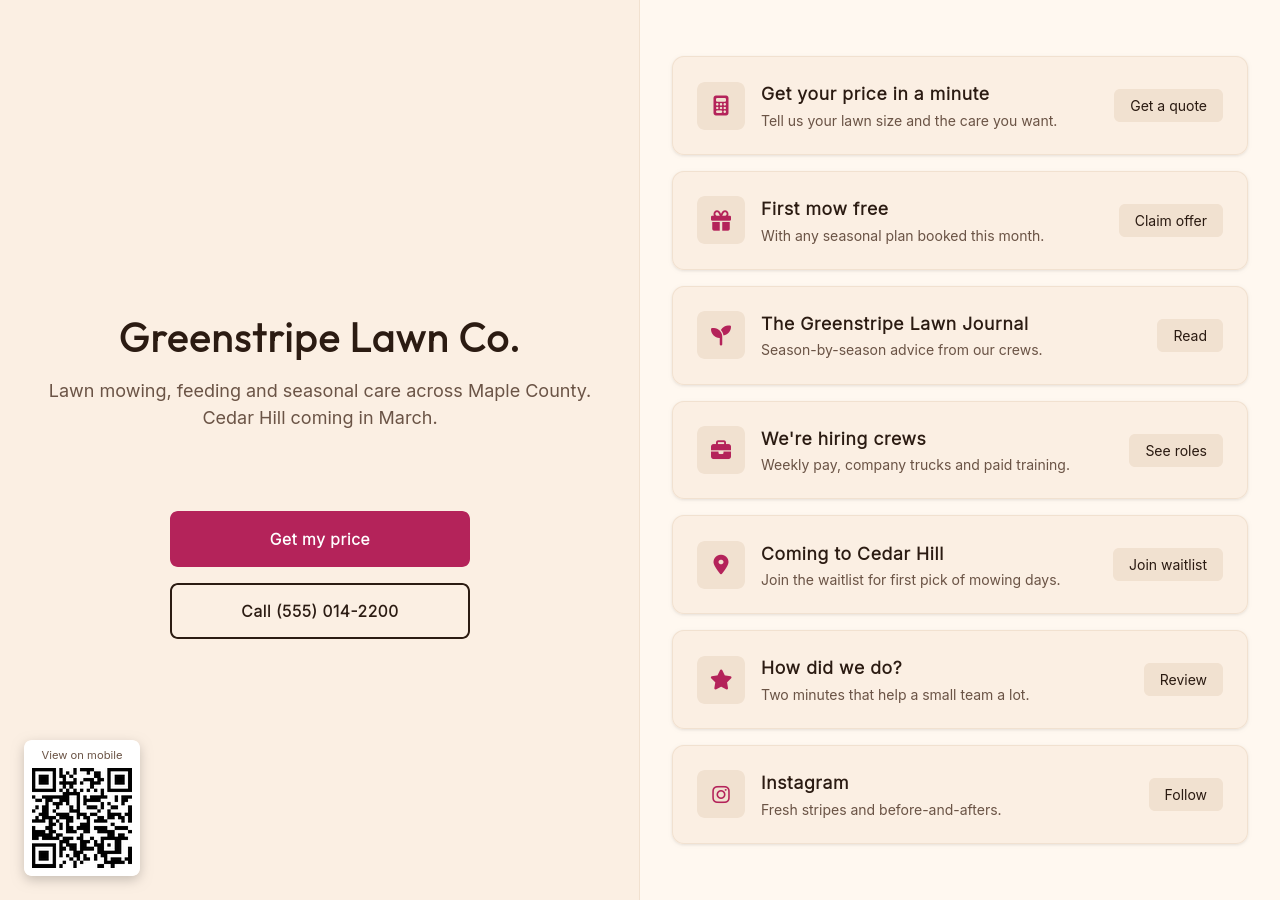
Here's a links page before and after applying a palette:
One component at a time
To update just one service or widget instead, open its style editor and press Use domain palette.
Nothing changes on its own: existing services and widgets keep their current look until you apply the palette.