
The asset library is easier to work with when you have a lot of files, and you can now upload, list and search assets through the API.
In the dashboard:
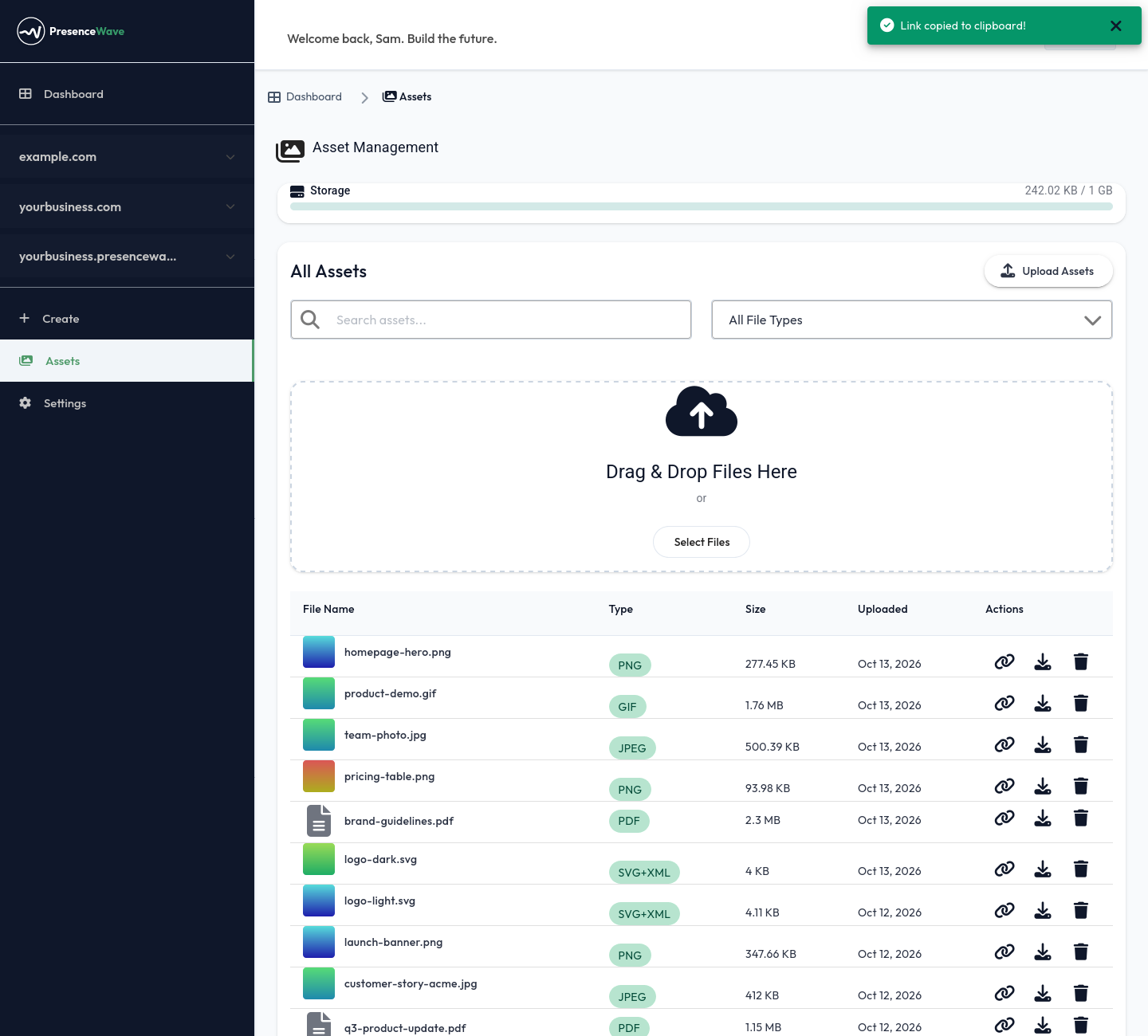
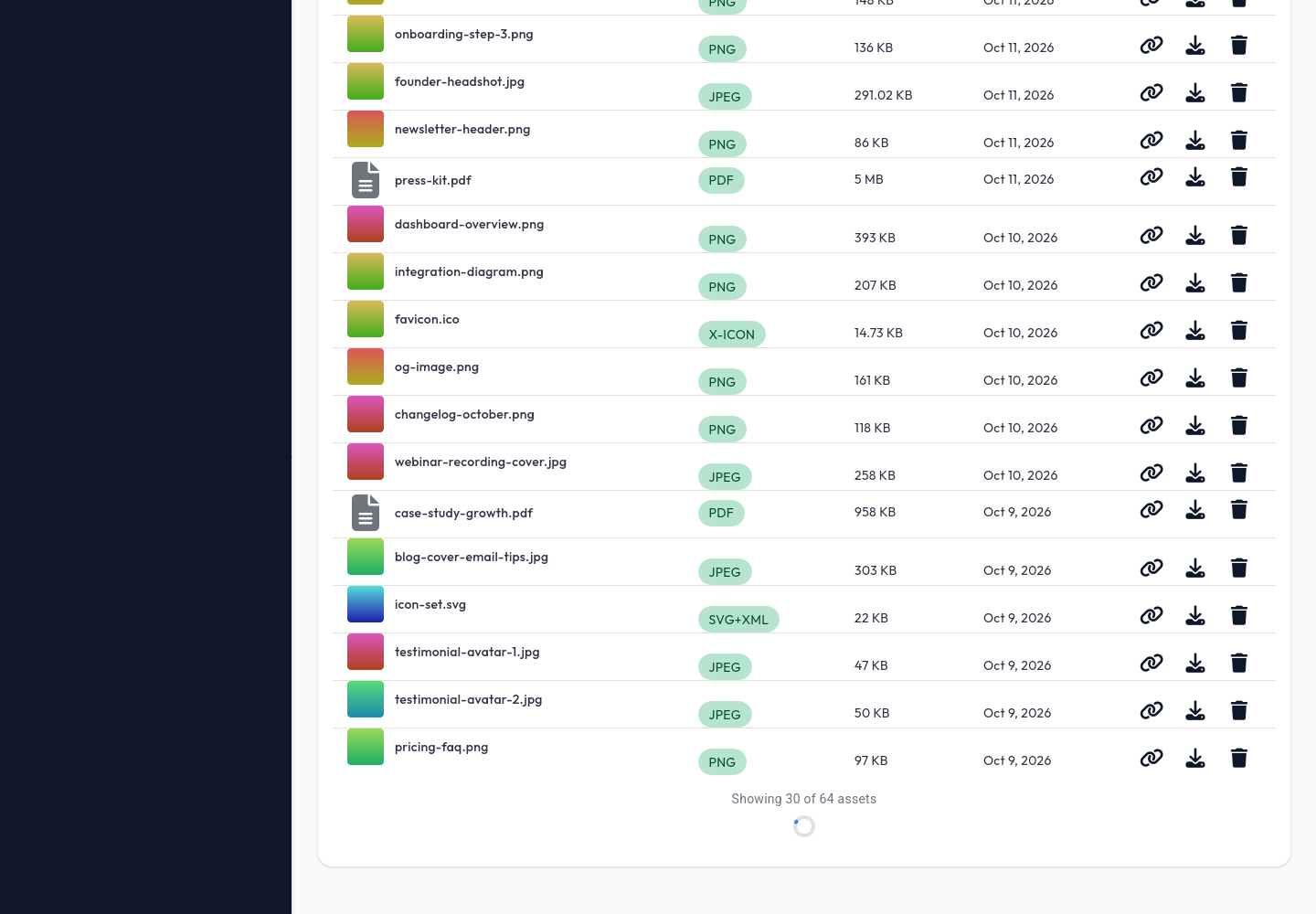
- Every asset is reachable. The list loads 30 assets at a time and fetches more as you scroll, with a count of how many are showing. Previously only the most recent files appeared.
- Copy a link in one click. Each asset has a copy link button next to download and delete, so you can paste its URL straight into a post, an email or your own site.
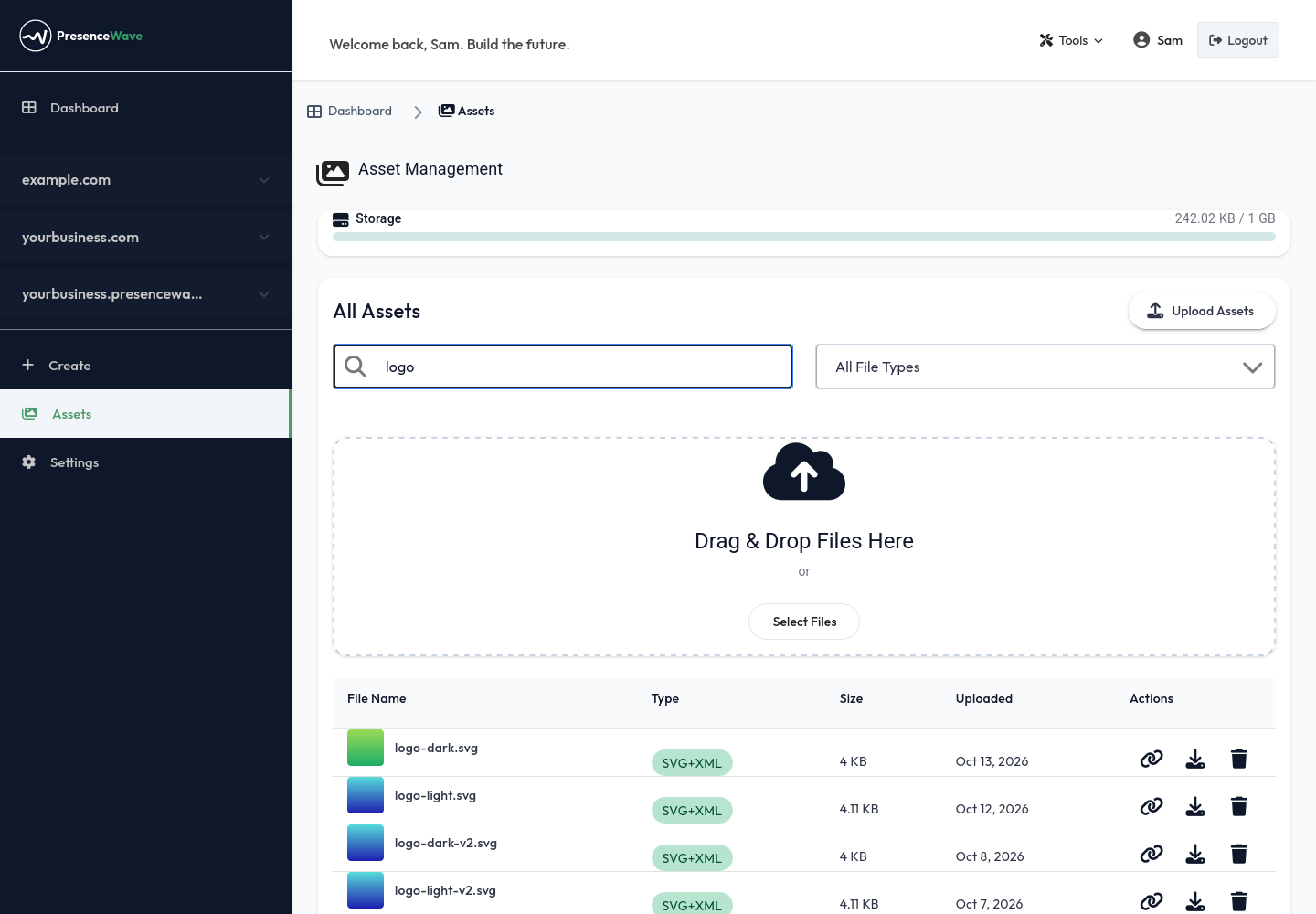
- Search and filters cover your whole library. Searching by name and filtering by images, documents or other files now look through every asset, not only the ones on screen.
Through the API:
- Upload one or more files with
POST /external/v1/assets. - List your assets with
GET /external/v1/assets, a page at a time, optionally filtered by type. - Search by file name or description with
GET /external/v1/assets/search.
Safe to re-run. By default an upload skips any file that already
exists with the same name, size and type, and tells you which asset it
matched. You can point a script at a whole folder and run it as often
as you like without creating duplicates. Add allowDuplicates=true
when you do want a second copy.
The assets API uses the same API tokens as the rest of the PresenceWave API. See the API reference for request and response details.
The images in this post were uploaded with the new API.